
Why the file is slow, and what actually helps
When a workbook turns sluggish it is easy to assume it has simply grown too big. Usually it comes down to one or two specific things, and they can be found. Start by noticing when the delay happens. If the file is slow to open, that points to external links and file size. If there is a pause every time you type in a cell, it is about recalculation. If even scrolling drags, it is usually formatting.
Formulas that recalculate for no reason
Some functions are volatile, meaning they recalculate every time anything changes in the workbook, even when their own inputs have not moved. The most common ones are OFFSET, INDIRECT, TODAY, NOW and RAND.
A handful is no problem. The problem is that they rarely stay a handful.
Here is how it usually goes. Someone needs the same cell from twelve monthly sheets and writes an INDIRECT that assembles the sheet name from a column. Twelve formulas, perfectly reasonable. The following year the sheet is copied into a new annual version. Then the report grows from one metric to thirty rows. Now there are three hundred volatile formulas in the file, and nobody ever decided to have them.
The same thing happens with an ageing analysis that counts days since the invoice date using TODAY. One formula per row, eight thousand rows in the ledger. Every keystroke anywhere else in the file recalculates all eight thousand, even though the answer only changes once a day.
The fix is the same in both cases. Call TODAY once in its own cell and reference that. OFFSET and INDIRECT can often be replaced with table references, which grow with the data without being volatile.
References to entire columns
A SUMIF across A:A asks Excel to consider a million rows. With one such formula you will not notice. With five hundred you will.
Point at the range you actually have data in, or use a table where the range grows on its own.
Conditional formatting that has multiplied
This one gets overlooked. Every time someone copies or inserts rows the rules come along and get split into new ranges, and after a couple of years a single sheet can hold hundreds of overlapping rules. It shows up most when you scroll.
Look under Home and Conditional Formatting, then Manage Rules. Delete the duplicates and merge the ones doing the same job.
A used range that has grown too large
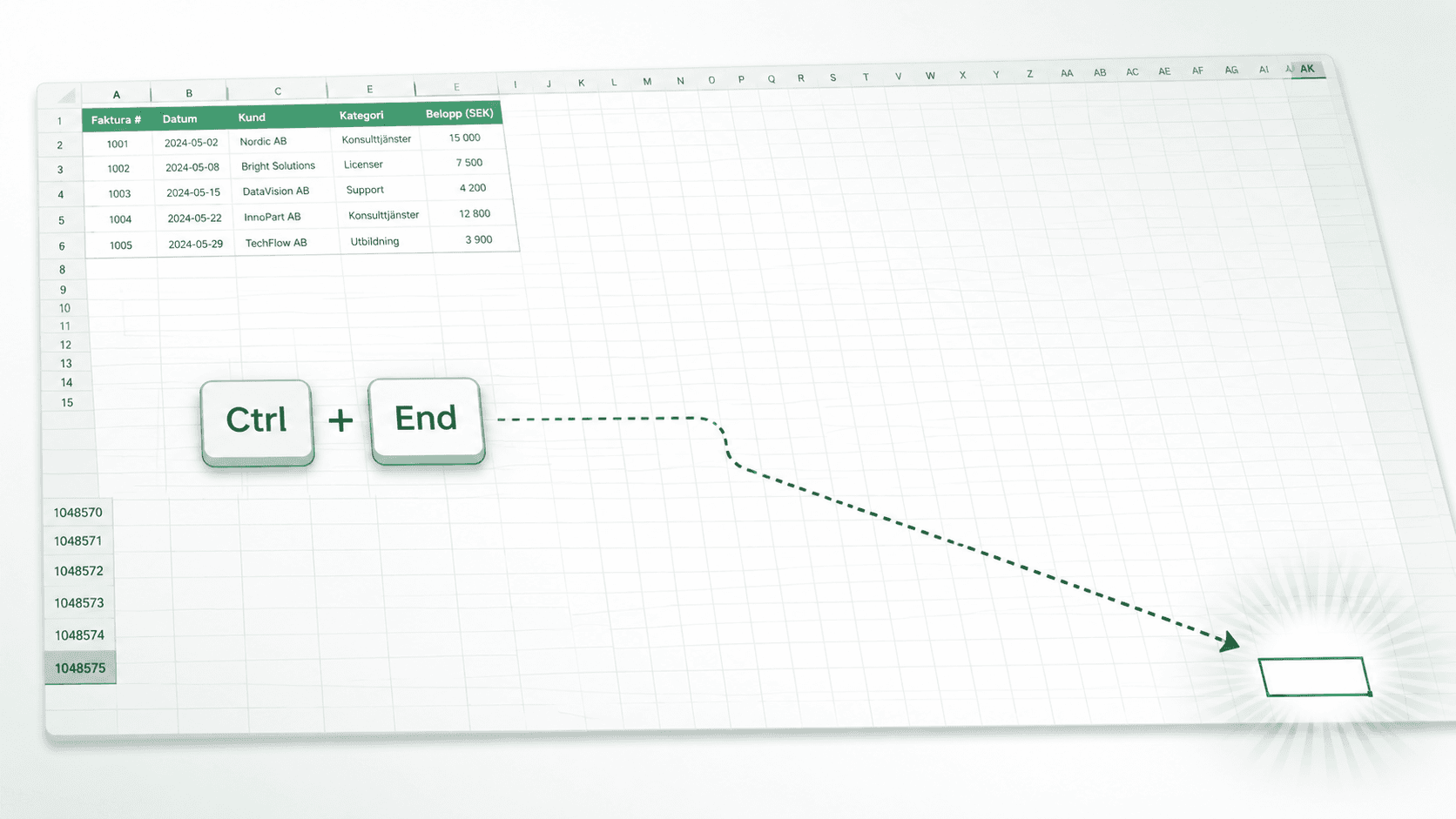
Press Ctrl+End. If the cursor lands far below or to the right of your data, the workbook has a bloated used range, usually from formatting left on empty rows.
Select the rows below your data, delete them, save and reopen the file. Only then does Excel recalculate the range. Do the same for columns to the right.
What rarely helps
Switching to manual calculation makes things feel faster, but the cause is still there and now you cannot see when something is out of date. Splitting the file into several rarely helps either, since the links between them cost more than they save.
Finding it in a file you did not build
All of the above is straightforward when you know where to look. In a workbook that has grown over several years it is harder, especially if you did not build it.
Calkin goes through the workbook and shows how the sheets connect, which ones are not linked to anything, and where in the file the various parts sit. That makes it easier to see which chain a change sets off, and what can be removed.